
One of the most practical personalization features you can make use of on your Mac is changing the system language, particularly since you are not a native English speaker, work in various languages, and even bought a Mac in a different country. macOS gives you the opportunity to control the display language, keyboard input language, application specific language, and even regional settings such as date, time, and currency.
With this deep tutorial, you will be able to know how to change language on Mac step by step, how to switch languages in a keyboard, how to use various languages in particular application, and how to resolve the problems with the macos language settings.
Table of Contents
Understanding Language Settings in macOS
Change anything before changing anything, it is worth learning that macOS handles language in three ways.
System Language
System language manages the language of menus, settings, notifications, Finder, and inbuilt Apple applications.
Keyboard and Input Language
The characters you type depend on the keyboard language. Even when your system language is a single language, you can have more than one keyboard layout.
Region Settings
Region settings determine date format, time format, currency, measurement unit, and calendar style. These are associated with language and could be set separately.
How to Change System Language on Mac
This is the primary way of modifying the presentation language of macOS.
Open Language & Region Settings
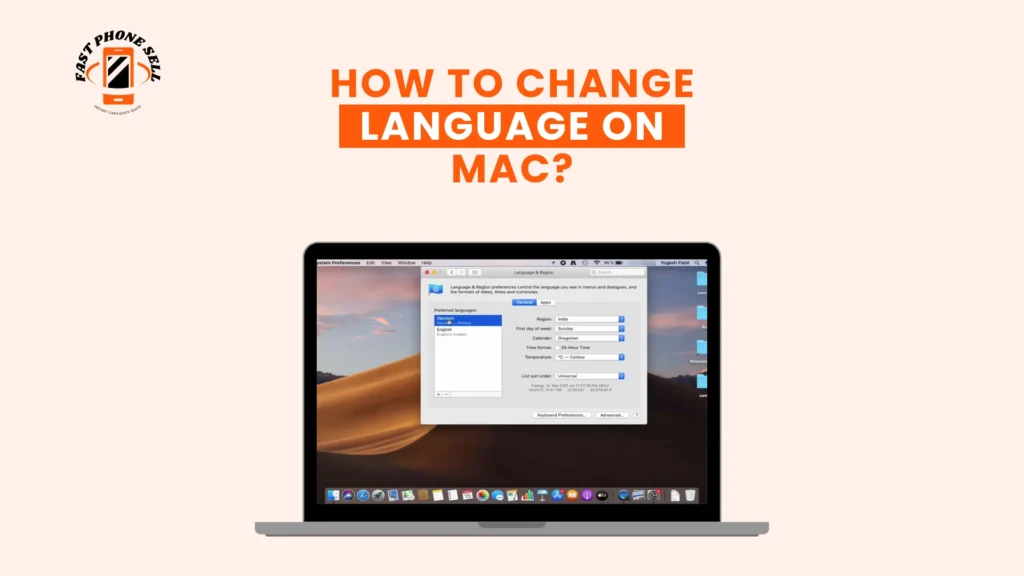
Go to the top-left of your screen and then click on the Apple menu and open System Settings. This is referred to as System Preferences in older versions of MacOS. There, under General, open Language and Region. This section manages all language and geographical interests of your Mac.
Add a New Language
In the Preferred Languages section, press the plus (+) button. All the supported languages on macOS will display a list. Select the language you wish to use and click Add. macOS will prompt whether you would like to use this language as your primary system language.
Set the New Language as Primary
Make sure you are affirming that you would like to change to the language chosen. The new language will be brought to the head of the Preferred Languages list. Your Mac can reboot with a message of changes it needs to make to cover the entire system.
Apply the Changes
Upon restart, all of the macOS interface (menus, system dialogs, and Apple applications) will be translated to the new language. This is the final step of the process of how to change language on Mac.
How to Change Keyboard Language on Mac
The system language is not automatically changed and so is your keyboard form. You will need to add the appropriate input source in order to type in a different language.
Add a New Input Source
Open System Settings and select Keyboard. Next, open Input Sources and press the plus (+) button. Choose the language and the keyboard layout you require, including Spanish, French AZERTY, Arabic, or German QWERTZ. Enhance it to your list of dynamic feedback mechanisms.
Switch Between Keyboard Languages
When you add several input sources, you can toggle between them via the menu bar or keyboard shortcut. The default shortcut is Control + Space, and this enables you to switch all languages of your keyboards in a moment.
How to Change Language for Individual Apps on Mac
You can also designate different languages to selected applications in macOS without altering the overall system language.
Set App-Specific Language
Click on Open System Settings and then on to General and then Language and region. Go to the Applications section and press plus (-) button. Select the app, and then choose what language you would like the app to use. Restart the app to implement the change.
This is very helpful in matters of translators, developers and bilingual users who require separate software in various languages simultaneously.
How to Change Region Settings on Mac
Language and territory are connected but not the same. Region determines how dates, numbers, currencies, and units of measurement are displayed in mac OS.
Modify Regional Format
In the Language and Region panel, choose the country you would like to use in Region. You are also able to customize the calendar format, temperature units or the number formatting. This is particularly useful when you desire English as your system language, yet you require European or Asian date and currency format.
How to Remove an Unused Language
After some time, you will have added several languages and you might wish to organize your list.
Delete a Language
Open Language & Region, choose the language you do not require and press the minus (–) button. The primary language cannot be removed, but all other languages can be removed easily.
Troubleshooting macOS Language Issues
Language Does Not Change After Restart
Be sure that the new language is the first one in the Preferred Languages list. Disconnect and reconnect or turn off and turn on the mac once more to make sure that the system reloads all the language resources.
Some Apps Stay in the Old Language
Not every third-party is able to support every language in macOS. Modify application-specific language or upgrade the application to the most recent version.
Keyboard Types Wrong Characters
Ensure the proper keyboard layout is chosen in Input Sources. To take an example, Arabic and Arabic PC layouts are distinct, and selecting the incorrect one may lead to unexpected appearance of characters.
Conclusion
how to change language on Mac provides you total control over your MacOS. You may need to change: the whole system to a different language, type several scripts, assign various languages to separate applications, or change regional formats, and macOS offers a highly adaptable and powerful language manipulation framework.
With the correct settings of system language, keyboard input and region settings, you can have a real multilingual Mac environment that best suits your workflow, location and comfort.
FAQs About How to Change Language on Mac?
Can I Use Multiple Languages on One Mac?
Yes. macOS permits a variety of system languages and keyboard input sources to be installed. You can alternate them anytime.
Will Changing Language Affect My Files?
No. Your data, folders, and documents are not changed. Only the interface language is changed.
Can I Revert Back to English?
You may switch to the English language by dragging it up to the top of the Preferred Languages list, then re-booting your Mac.