
Apple Pay is among the simplest and safest methods to conduct digital transactions with your iPhone, Apple Watch, iPad, or Mac. It is possible to use Apple Pay in both physical and online shops as well as within apps, so knowing how to use Apple Pay can make your everyday purchases go faster and safer. This is a detailed guide that will show you how to install and use Apple Pay, as well as make it effective in various scenarios.
Table of Contents
What Is Apple Pay and How Does It Work?
Apple Pay is a digital wallet application created by Apple that enables you to store your debit and credit cards in the Apple Wallet application. You can now use your physical card, though, and instead pay with your device, via Near Field Communication (NFC) technology and biometric authentication like Face ID or Touch ID.
When you pay, Apple Pay does not provide the merchant with your real credit card number. On the contrary, it operates with a special, encrypted device account number, and all transactions are confidential and safe.
Devices That Support Apple Pay
Apple Pay on iPhone
The majority of modern iPhones accept Apple Pay. It can be used with Face ID or Touch ID to approve payments in shops, web, and apps.
Apple Pay on Apple Watch
Pay without reaching to your phone with Apple Watch. You can complete contactless payments by a simple two-clicks of the side button.
Apple Pay on iPad and Mac
Online purchases can also be made using Apple Pay on iPad and Mac. With these Macs with Touch ID, you can verify payments directly. On other macs, you can pay with your paired iPhone or Apple Watch.
How to Set Up Apple Pay
How to Add a Card to Apple Wallet
On your iPhone, open the Wallet app and tap the plus icon. Select adding a new debit or credit card and scan it with the camera or input the information manually. The card will be authenticated by your bank with a one-time code, phone, or a banking application. After verification, your card will be active in the Apple Wallet and compatible with Apple Pay.
Setting Up Apple Pay on Apple Watch
On your phone, open the Watch app and then tap Wallet and Apple Pay, followed by adding your card. The verification process follows the same pattern as with iPhone. Once configured, your Apple Watch can use it to make payments itself.
Setting Up Apple Pay on Mac
On a Mac that has the Touch ID, go to System settings and access Wallet and Apple Pay where you add your card. You can verify the payments on your iPhone or an Apple Watch on a Mac without Touch ID.
How to Use Apple Pay in Stores
Paying with iPhone Using Face ID
To pay, just tap twice with the side button, check your screen to verify through Face ID, and place your phone on the contactless payment terminal. The transaction is verified by a vibration and a checkmark.
Paying with iPhone Using Touch ID
Tap the Home button with your finger and bring the phone near the payment reader. The payment is made once your fingerprint is identified.
Paying with Apple Watch
On the Apple Watch, press the side button twice and bring it close to the reader. When the payment is made successfully, you will feel a slight tap.
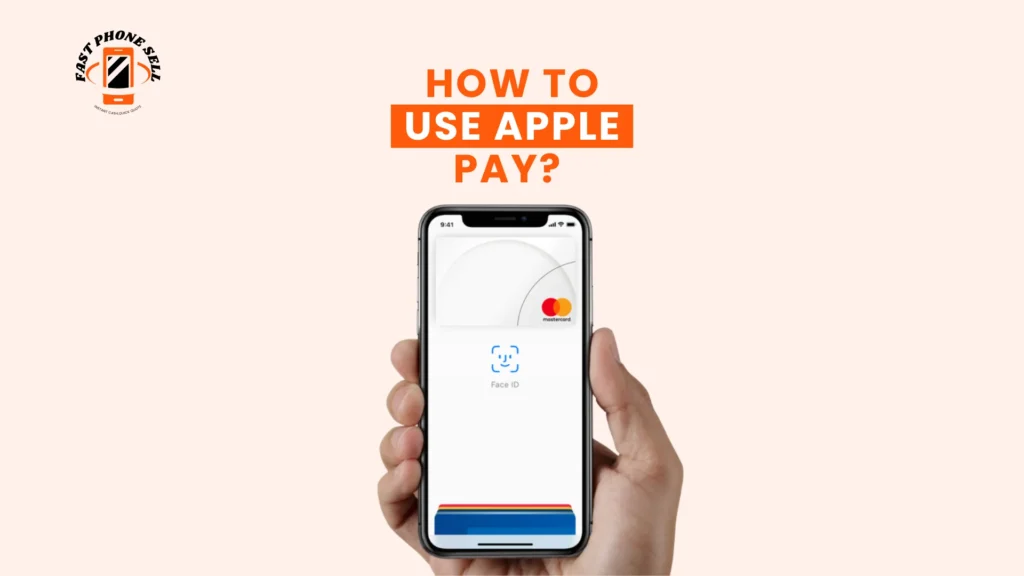
How to Use Apple Pay Online and in Apps
Select Apple Pay as your payment option when shopping in the web or within apps. Your shipped and saved card information will be displayed automatically. You just need to verify the payment via Face ID, Touch ID or device passcode. On Mac, you can use Touch-ID or authorize the transaction through your iPhone.
It eliminates the necessity of manually typing in card numbers, and it accelerates and secures online shopping.
Apple Pay Security and Privacy
Apple Pay is a highly secure payment service. No card details are saved on your device or shared with merchants. Every transaction is verified using biometric authentication or a secure password and every payment is issued with a special token. You can remotely suspend Apple Pay through Find My, even when you lose your device.
Managing Cards and Settings in Apple Wallet
You can select a default card and add or delete cards, and see recent transactions in the Wallet app. It is also possible to change your billing address and settings specific to a region. This puts you in complete authority over the operation of Apple Pay on your Apple devices.
Where You Can Use Apple Pay
Apple Pay is accepted at millions of places around the globe, whether it be a retail store that has a contactless terminal, an online site, a mobile application, a transport network in a city that supports it, or even some vending machines and taxis. The Apple Pay logo or contactless symbol generally signifies availability.
Common Apple Pay Issues and Their Solutions
When Apple Pay fails to work, it can be because of card verification, unsupported areas, or software that is out of date. These problems can always be resolved by updating your device, adding your card again, inspecting your Apple ID area, or calling your bank and asking them to resolve your problems.
Conclusion
Learning how to use Apple Pay means having a quick, convenient and very secure method of payment. Apple Pay makes the process of setting up your cards in Apple Wallet to paying in the stores and even on the internet easier. It is among the best digital payment solutions in the current world due to its high security, extensive acceptance, and smooth integration among Apple devices.
FAQs About How to Use Apple Pay
What is Apple Pay and how does it work?
Apple Pay is an online wallet that provides the opportunity to make secure payments via your iPhone, Apple Watch, iPad, or Mac. It has your card information saved in the Apple Wallet application and allows Face ID, Touch ID, or a password to approve every transaction. Rather than sending your actual credit card number, each payment is made with an encrypted token in Apple Pay.
Is Apple Pay safe to use?
Yes, Apple Pay is very secure. Your card number is never saved into your device or disclosed to merchants. Biometric authentication or a passcode is required in every payment, and no two transactions are done with the same security code, which is more secure than a physical card.
How do I add a card to Apple Pay?
On your iphone, you can open the Wallet app, tap the plus button and proceed to scan or enter your card manually. The card will be activated after being checked by your bank. The Watch app or Mac System Settings allow you to add cards as well.
Can I use Apple Pay without the internet?
Yes, contactless in-store payment with Apple Pay can be used without a running internet connection. Nonetheless, some online or app purchases and initial card setup may require use of the internet to verify and/or set up the card.
Where is Apple Pay accepted?
Apple Pay is compatible with the majority of contactless payment kiosks in retail outlets, numerous websites, and a host of mobile applications. You can also apply it on transport facilities in supported localities and cities.