
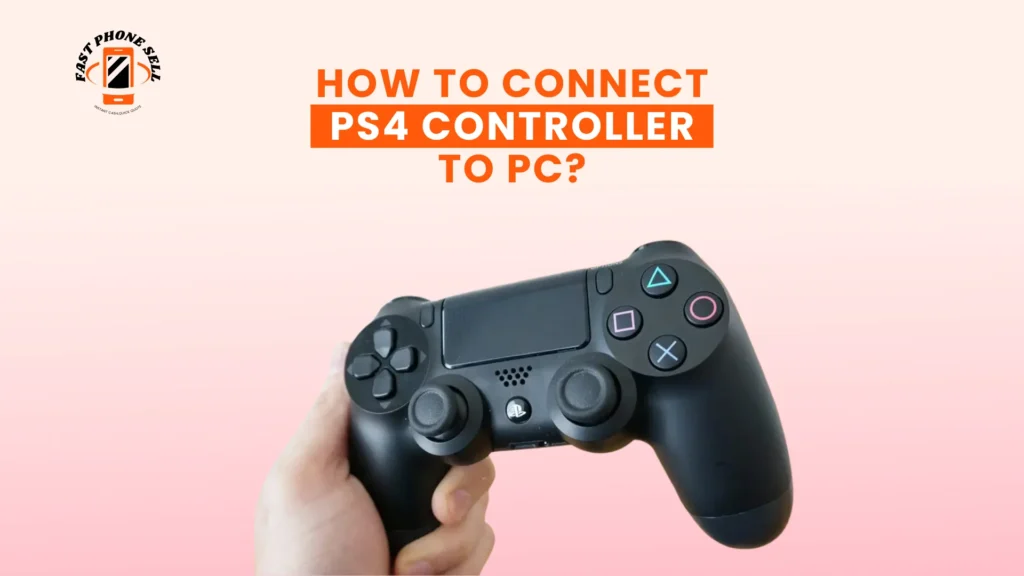
A PS4 controller is compatible with a PC, and when used, it can revolutionize your gaming. Some gamers find it more convenient to use console-style controls instead of a mouse and keyboard in particular games, particularly racing, fighting and platform games. It is easy to connect a DualShock 4 controller to a PC and works with Windows 10 and Windows 11. The connection between PS4 controller to PC can be done either by wired, which is more reliable, or by wireless, which is more convenient, but in either case, this guide covers the connection processes step-by-step, includes troubleshooting hints and configuration recommendations how to connect PS4 controller to PC and non-Steam games.
Table of Contents
What You Need Before Connecting Your PS4 Controller
You will need to prepare the PS4 controller PC setup by making sure you have the required equipment. A USB cable and a DualShock 4 controller (wired connection) will be required. To play wirelessly, your PC ought to have Bluetooth or a USB Bluetooth gadget. Windows frequently automatically recognizes controllers, but certain games can only be fully compatible with the help of extra programs such as the DS4Windows. To establish a smooth connection and minimize possible problems, it will be necessary to prepare these tools in advance.
How to Connect PS4 Controller to PC Using USB
The simplest and surest method is the wired one. It offers a constant connection, no input lag, and your controller is always on. In order to make the connection through USB, the first step would be to insert a cable of micro-USB in your PS4 controller, and then in a free USB port of your computer.
The PS button, located in the center of the controller, automatically recognizes the device when you press it. The controller is normally ready to use only a few seconds after the system has installed the required drivers. Connection by wire is the best in competitive gaming because of low latency and predictability of performance.
In case your controller is not recognized, make sure to use a USB cable that allows transferring data and not charging alone. Recognition problems can also be resolved by trying a different USB port.
How to Connect PS4 Controller to PC via Bluetooth
To people who do not want the use of cables, the PS4 controller can be connected using Bluetooth, which offers a great deal of flexibility as you can sit anywhere you want provided that you are in range of your PC. The connection is simple and can be set-up in a few additional steps compared to a wired connection.
To start with, turn on Bluetooth in your Windows computer, and this is done by going to Settings Bluetooth and Devices. Make sure that Bluetooth is on and your PC is not hidden. Provided your system does not have Bluetooth installed, a USB Bluetooth adapter can be easily installed to enable you to connect.
Then, place your PS4 controller in the pairing mode by pressing and holding the PS button and Share button together approximately 5 seconds. On the light bar, there will be a flash to signal pairing. On your PC, add Bluetooth and choose Wireless Controller. After connecting, the light bar will become solid, which proves a successful connection.
Wireless connections can add some latency, however this can be tolerated on most casual and single player games. To have a stable connection, make sure your controller is charged, and other Bluetooth devices do not disturb the connection.
Using DS4Windows for Full Compatibility
Although the PS4 controller is recognized by windows, not every game is actually compatible with it. DS4Windows is a free program that makes your computer behave like an Xbox controller to allow complete compatibility with virtually any game.
Other advanced features of DS4Windows include customizing of button mapping, sensitivity, and light bar and vibration settings. Once you have downloaded DS4Windows, extract the files and then proceed with the installation instructions. Connect your PS4 controller with either USB or Bluetooth, and your PS4 will be automatically recognized by DS4Windows. Then you will be able to make your own game profiles or default settings.
DS4Windows is especially handy with the older PC titles and non-Steam games where the button prompts or recognising control might not work properly. It makes sure that the PS4 controller functions as anticipated with various games.
How to Configure PS4 Controller on Steam
Steam supports PS4 controller directly, allowing it to be easily set up. To achieve complete compatibility, start the open Steam and head to Settings → Controller → General Controller Settings and turn on the PlayStation Configuration Support. Steam will identify the PS4 controller and will enable you to remap the controls to each game.
Using Steam, you are able to reconfigure buttons, customize sensitivity, and even profile a game. It also has a console-like interface that allows use on a controller, which is further refined in Big picture Mode. Due to the native support provided by Steam, a wide range of current games will detect the PS4 controller without the need of DS4Windows.
Common PS4 Controller Connection Issues and How to Fix Them
Although a PS4 controller to a PC is simple to connect, users occasionally experience problems when trying to connect the controller. With simple troubleshooting, these issues can be fixed within a short period.
When your PC fails to recognize the controller, then ensure that the USB cable supports data transfer or use another port. In the case of Bluetooth, remove any previous pairing and recreate the connection. Recognition problems are usually resolved by updating Bluetooth and USB drivers.
In some cases the controller is known, yet games do not work as expected. The game has numerous titles that need to be enabled via controller support settings. In games that lack support of PlayStation controllers, DS4Windows can be used to simulate Xbox controller, providing appropriate input. Wireless connections are known to have input lag or disconnections.
Wired connections also eliminate these problems, and lag can be minimized with Bluetooth by keeping the signal strong and using a good distance to the PC. Make sure that the controller is charged and other wireless devices do not interfere.
Wired vs Wireless: Choosing the Best Connection Method
The decision between wired and wireless connection is a matter of preference when it comes to gaming. Competitive gameplay is best played on wired connections because it is stable and has low latency. Wireless connections are more comfortable and mobile, on the other hand, which makes them ideal to use in casual or living-room setups. Numerous controllers alternate both with wired and wireless modes in accordance with the game and environment.
Conclusion
Knowing how to connect PS4 controller to PC opens a new gaming platform where you can have your favorite PC games with console-like control. The wired and wireless approaches are both simple, and programs such as the DS4Windows or Steam configuration make all games compatible. The PS4 controller is an ideal option in PC play whether you are a competitive gamer who wants precision or a casual player who likes the flexibility of wireless gaming.
FAQs About How to Connect PS4 Controller to PC?
Can I connect a PS4 controller to PC without Bluetooth?
Yes, it can be fully functional without the Bluetooth when using a USB cable. Wired connections are straightforward and dependable.
Do I need DS4Windows for every game?
DS4Windows is not necessary in all games. Most modern titles and Steam are compatible with the PS4 controller, but DS4Windows can be used with older or non-Steam games.
Does the PS4 controller work on Windows 11?
Yes, PS4 controllers are compatible with Windows 10 and Windows 11, both wired and wirelessly.
Can I play games wirelessly without input lag?
The wireless networks can add a bit of delay. In the case of competitive gaming, wired connection offers minimal lag and the most reliable performance.