
One of the most powerful accessories to use with an iPad is the Apple Pencil. The Apple Pencil is much more precise and responsive than fingers when taking notes by hand, drawing on a computer screen, editing photos, or marking up documents. Nevertheless, a significant number of users continue to be confused when it comes to how to connect Apple Pencil to iPad, in large part due to the fact that now there are several models of Apple Pencil, each possessing a different pairing option.
Here is a detailed guide that will help you to match each Apple Pencil generation with the appropriate iPad. We will also discuss compatibility, frequent connection problems, and effective troubleshooting to make sure that your Apple Pencil functions perfectly.
Table of Contents
Understanding Apple Pencil and iPad Compatibility
The compatibility is the first thing that you should check before connecting the Apple pencil. Not all iPads support Apple Pencil models, and the most frequent scenario of failed connection is the wrong pairing mode.
Apple Pencil Generations
There are four types of Apple Pencils: Apple Pencil (1 st generation), Apple Pencil (2 nd generation), Apple Pencil (USB-C) and Apple Pencil Pro. The models are different in the manner they pair and the ones which they support.
The Apple Pencil first generation charges and pairs physically with a connector. Apple Pencil Pro and the second generation depend on magnetic attachment and wireless connection. To switch to wireless, the USB-C Apple Pencil is initially connected with the help of a cable.
When your Apple Pencil fails to connect, compatibility is the most common issue, not a defect.
How to Connect Apple Pencil to iPad (1st Generation)
The Apple Pencil 1st generation is a device that can be physically connected to an iPad. This is an easy method that needs the right port or adapter.
Pairing Apple Pencil 1st Generation Step by Step
Begin by removing the top of the Apple Pencil to expose the connector. In case your iPad has Lightning port, plug Apple Pencil directly into the port. In the event that your iPad has USB-C, use Apple Pencil to connect to the iPad with the official USB-C to Apple Pencil adapter.
After the connection, the iPad will show a pairing message on the screen. Tap Pair to connect. Once paired, you may remove the Pencil and begin using it. The pairing technique is generally applicable to older iPads and base models.
When paired, the Apple Pencil will automatically reconnect whenever the Bluetooth is on.
How to Connect Apple Pencil to iPad (2nd Generation)
The Apple Pencil 2nd generation provides an easier and more modern pairing experience and it is cable-free.
Pairing Apple Pencil 2nd Generation Wirelessly
To begin with, make sure that you have enabled Bluetooth in the iPad settings. Then, hold the Apple Pencil on the magnetic side of your iPad, which is generally on the side closest to the volume buttons.
In few seconds, a pairing notification will show up on the screen. The Apple Pencil and Tap Connect will connect immediately. The Pencil also automatically charges when magnetically attached.
Such approach is only available in more recent iPad models like iPad Pro, iPad Air (4th generation and newer), and iPad mini (6th generation).
How to Connect Apple Pencil to iPad Using USB-C
Newer iPads are not compatible with Lightning accessories, and instead use the USB-C Apple Pencil as introduced by Apple.
USB-C Apple Pencil Pairing Process
The first thing is to enable Bluetooth in the iPad settings. Slide the Apple Pencil and reach the USB-C port. Attach the Pencil to your iPad with USB-C. On your iPad, you will see a pairing prompt. Tap Connect to complete the pairing.
After pairing, you are free to disconnect the cable and use the Apple Pencil wirelessly as the rest of them. The Apple Pencil is perfect because it provides a cost-effective alternative to users desiring a modern connector without spending money on high-level gesture support.
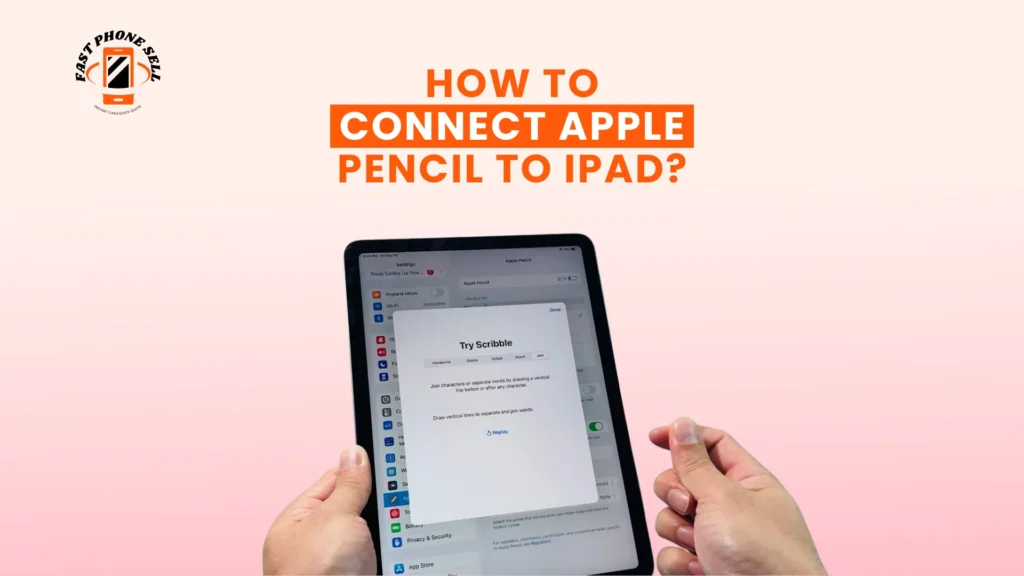
How to Pair Apple Pencil Pro with iPad
Apple Pencil Pro is the most advanced Apple stylus and it aligns with the 2nd-generation Apple Pencil in terms of connection.
Apple Pencil Pro Pairing Method
Magnetically place the apple pencil on the side of the compatible iPad. Ensure that Bluetooth is turned on. When the matching request is received, press Connect.
Once paired, the Apple Pencil Pro is set to use and will automatically recharge when doing so.
How to Confirm Apple Pencil Is Connected
Once you have paired, you might want to confirm that your Apple Pencil is connected.
You can do it by opening up the Notes app and typing on the screen. The other way is to check in the Settings, Bluetooth section and the Apple Pencil must be shown as connected. The Battery widget can also be added, where the charge level of the Apple Pencil is displayed, to ensure that the device is connected.
How to Disconnect or Unpair Apple Pencil from iPad
It can be helpful to unpair the Apple Pencil in case of a new iPad or to solve connection problems.
Open Settings and select Bluetooth. The list of devices also shows Apple Pencil, tap the information icon next to it. Choose Forget This Device to unpair the Pencil.
When you remove it, you can reconnect it again by following the same pairing steps.
Apple Pencil Not Connecting
When your Apple Pencil is not connecting to your iPad, the problem is typically simple to fix.
Low Battery Issues
A batteryless Apple Pencil does not pair. Allow a few minutes to charge the Pencil before repeating.
Bluetooth Connection Problems
Turn off Bluetooth and turn it on again, and try to reconnect with Pencil. This reinvigorates the wireless connection.
Software Glitches
Rebooting your iPad usually helps resolve temporary bugs that prevent pairing. It is also important to update iPadOS to be compatible.
Physical Interference
Connectors or magnetic attachments may be blocked by dust or debris or by thick iPad cases. Wipe off the contacts and attempt to remove the case.
Compatibility Mismatch
When nothing succeeds, make sure that your Apple Pencil model is compatible with your iPad.
Tips to Improve Apple Pencil Performance
Ensure that your Apple Pencil is charged and put in the proper place in order to have the best experience. Magnetic models are to be kept on the iPad even when not using it. Regular updates to iPadOS make it more responsive and reduce problems with connection.
With the help of apps like Notes, Procreate, or GoodNotes, which can be used with the Apple Pencil specifically, performance and accuracy will also become considerably high.
Final Thoughts
The knowledge of how to connect Apple Pencil to iPad is all about finding out what generation it is and what pairing method to use. Apple has simplified the process, and compatibility, as well as charging, can be confusing.
When used with an iPad, the Apple Pencil is an indispensable device that allows you to unlock the full creative and productive capabilities of your iPad.
FAQs About How to Connect Apple Pencil to iPad?
Can Apple Pencil Connect to iPhone?
No, Apple Pencil is only compatible with iPad models and cannot be used with iPhones.
Why Does My Apple Pencil Keep Disconnecting?
This normally occurs because of low battery, Bluetooth instability, or outdated software.
Can One Apple Pencil Be Used With Multiple iPads?
Yes, but it should be unpaired out of one iPad and then paired to another.
How Do I Know Which Apple Pencil I Own?
You can confirm it by looking at the charging method or seeing the model details in the Bluetooth settings.