
You can connect Samsung phone to your TV and be able to see movies, pictures, apps, games, and even study presentations on a much bigger screen. Samsung provides a number of available in-built and out-of-built options to achieve this connection and you might be inclined towards screen mirroring wirelessly, having a desktop like set up or you might be a wired HDMI connection.
This step-by-step tutorial will teach you how to link a Samsung phone to a TV to a television with all possible ways, how to choose the best variant to use in a specific case, and how to resolve the most frequent problems with connections.
Table of Contents
How to Link Samsung Phone to TV Quickly
The simplest and most prevalent method of connecting a Samsung phone to a TV is by using Smart View or SmartThings, which are both driven by Wi-Fi to replicate your phone display. Connection should take less than a minute as long as your phone and TV are both in the same Wi-Fi network.
In case there is no Wi-Fi or you require a more reliable connection, Samsung phones also operate HDMI adapters, Samsung DeX, and Chromecast-based casting..
Understanding the Best Connection Method for Your Needs
All connection methods do not work in the same way. Screen mirroring is most appropriate in recreational functions such as video viewing or photo display. Samsung DeX enables productivity-focused activities, including working on documents, multi-window browsing, or presentations. Wired connections are the surest in case of slow or unavailable internet speed.
The best process to follow in selecting the appropriate method will be based on the model of the TV, compatibility of the phones, and intended usage of the screen.
Linking Samsung Phone to TV Using Smart View
What Is Smart View on Samsung Phones?
The built-in wireless screen mirroring feature of Samsung is called Smart View. It enables you to project the screen of your phone on a Smart TV in real time. The majority of Samsung Smart TVs that were released as of 2016 and many non-Samsung TVs also support Smart View.
How to Use Smart View to Mirror Your Screen
First, make sure that your Samsung phone and television are on the same Wi-Fi network. On your phone, swipe downward on the top of the screen to open the Quick Settings panel. Tap Smart View, and your television will be listed in devices available. Choose your TV and check the connection. In case you see a PIN on the TV screen, type it on your phone.
When you are connected, all that is projected on your phone will be reflected on your TV in real time.
When Smart View Is the Best Option
Smart View is optimal to stream videos, social media, view photos, and casual gaming. It is easy to operate and does not need additional accessories.
Connecting Samsung Phone to TV with SmartThings
What Is SmartThings and How It Works
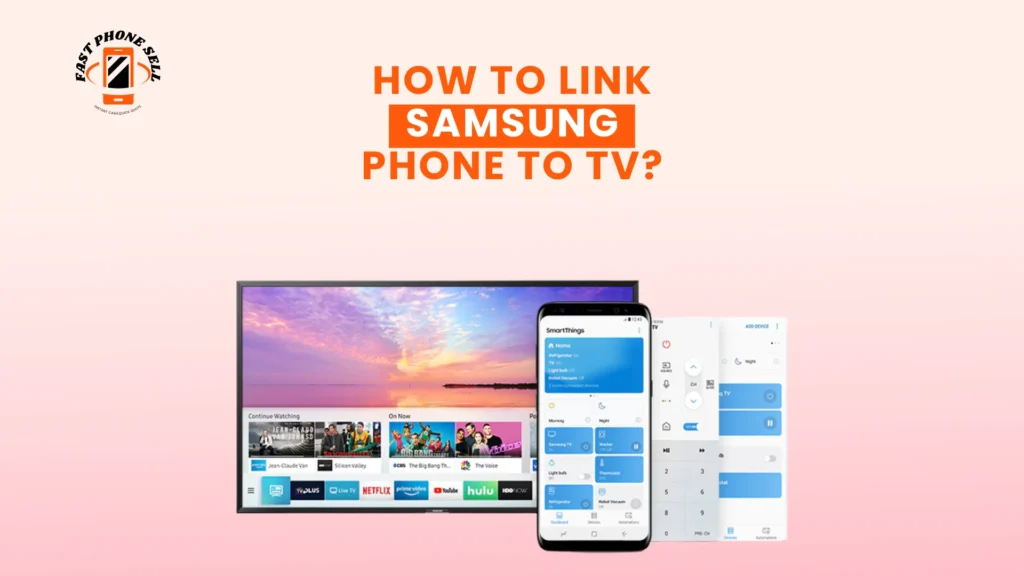
Samsung has a device-management application called SmartThings that enables you to manage and connect several Samsung devices, such as Smart TVs. It comes in particularly handy when there is no Smart View in Quick Settings or when controlling newer Samsung television sets.
How to Mirror Screen Using SmartThings
Open the smart things app on your Samsung phone and log in using your Samsung account when necessary. Choose your television among the given list of devices or create it manually. After the connection, select the screen mirroring option and accept the connection on your TV.
The result of this approach is a stable wireless mirroring option that is also compatible with new Samsung televisions.
Using Samsung DeX to Link Phone to TV
What Is Samsung DeX?
With Samsung DeX, your phone is turned into a desktop-like experience when it is connected to a monitor or TV. Rather than replicating your phone screen, DeX presents a more computer-like interface capable of multitasking, attaching external keyboards and mice.
Wireless Samsung DeX on TV
Open Quick Settings on your phone and tap DeX assuming your TV is compatible with wireless display. Select the option to connect to a TV and pick your TV in the list. Once approved, the DeX interface will be displayed on the TV.
Samsung DeX Using HDMI Cable
To make it feel more stable, you should use a USB-C to HDMI converter and connect it to the phone and then to the TV. Switch the TV input to HDMI. Samsung dex will automatically roll out on compatible devices.
Samsung DeX is best suited to office work, presentations and productivity activities.
Linking Samsung Phone to TV Without Wi-Fi Using HDMI
Why Use an HDMI Connection?
HDMI connection is the surest method of connecting a Samsung phone to a TV. It is not reliant on Wi-Fi and has low latency, which is ideal when it comes to gaming, offline content, and high-quality video playback.
How to Connect Using an HDMI Adapter
Insert a HDMI to USB-C converter to your Samsung phone. Connect HDMI cable into the adapter and into the TV. Switch the TV entry point to the appropriate HDMI port. Quickly you will see your phone screen.
The technique is compatible with nearly all televisions, including older ones.
Casting Samsung Phone to TV Using Chromecast
What Is Casting and How Is It Different?
The Casting feature enables certain applications to be displayed on your television, rather than showing the whole phone screen. Such apps as YouTube, Netflix, and Spotify are compatible with Chromecast.
How to Cast from Samsung Phone to TV
Ensure your TV or Chromecast is linked to Wi-Fi. Open a supported app on your Samsung phone and click the Cast icon. Choose your TV to start streaming.
Compared to screen mirroring, casting consumes less battery and can have a superior video quality.
Wi-Fi Direct and Tap to Mirror Features
Certain Samsung phones and televisions use Wi-Fi Direct which lets you establish a direct wireless connection without a router. Some Samsung TVs also have the Tap to Mirror feature, where tapping the phone slightly on the TV will begin automatically sharing the screen. Availability will depend on your model of phone and TV.
Fixing Common Samsung Phone to TV Connection Issues
In case your TV is absent in the devices list, make sure that both the devices are connected to the same Wi-Fi connection and restart them. In the case of lag or delay, a change to a 5GHz Wi-Fi network or an HDMI cable tends to resolve the problem. Should there be no sound, make sure that the audio output of the television is set and that the volume on your phone is turned up.
Staying current on the software on both your phone and your TV also helps to avoid most of the connection troubles.
Privacy and Security While Screen Mirroring
When mirroring, there can be notifications and messages displayed on the TV screen. You can use Do Not Disturb in your phone to defend your privacy. Wi-Fi networks should never be used without first verifying that they are trusted.
Conclusion
Now, you have learned how to link a Samsung phone to a TV both wirelessly and wiredly. Smart View or SmartThings is the quickest in everyday use. Samsung DeX provides the most favorable experience when it comes to work and multitasking. An HDMI connection is the best answer when reliability is a key factor.
FAQs About How to Link Samsung Phone to TV?
How can I link my Samsung phone to a TV without Smart View?
Depending on the set up, you can use SmartThings, Samsung DeX, HDMI adapters or Chromecast.
Can I connect my Samsung phone to any TV?
Yes, the majority of TVs can support at least one of these options including HDMI, casting, or screen mirroring.
Is Samsung DeX better than screen mirroring?
Samsung DeX can be more productive, whereas screen mirroring can be more casual.